



FAMILY HUB
Family resources and links
RevTrak is the online payment system your school district uses for school-related fees, forms, meals, events, activities, and more.

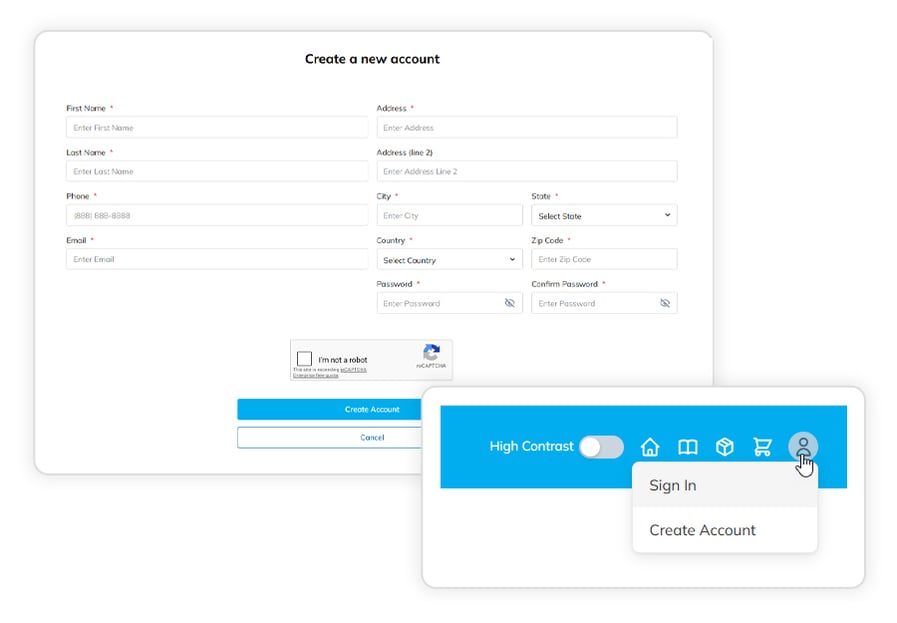 |
1. Create account & sign in |
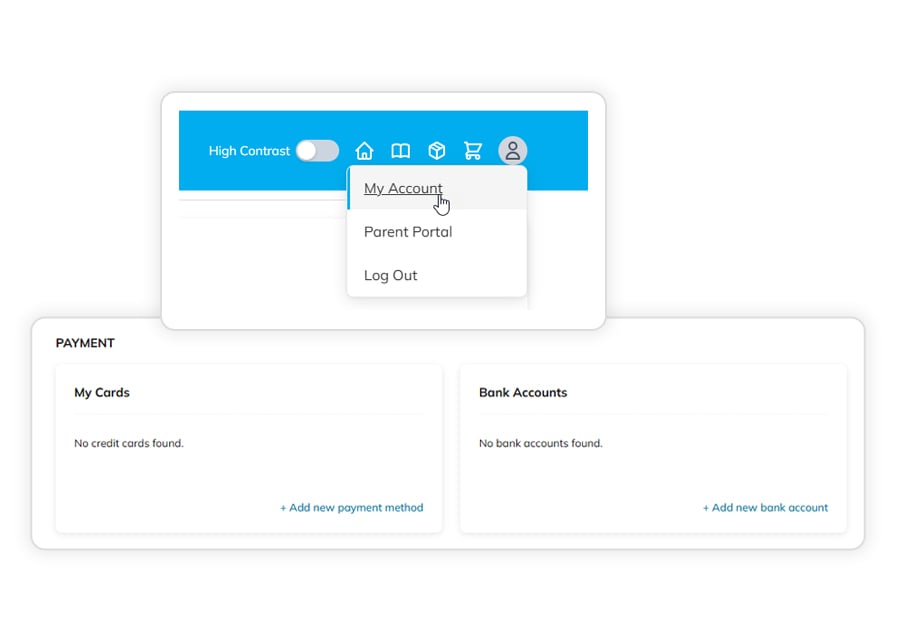 |
2. Add payment methodUnder ‘My Account’, add a Debit/Credit Card or Bank Account. |
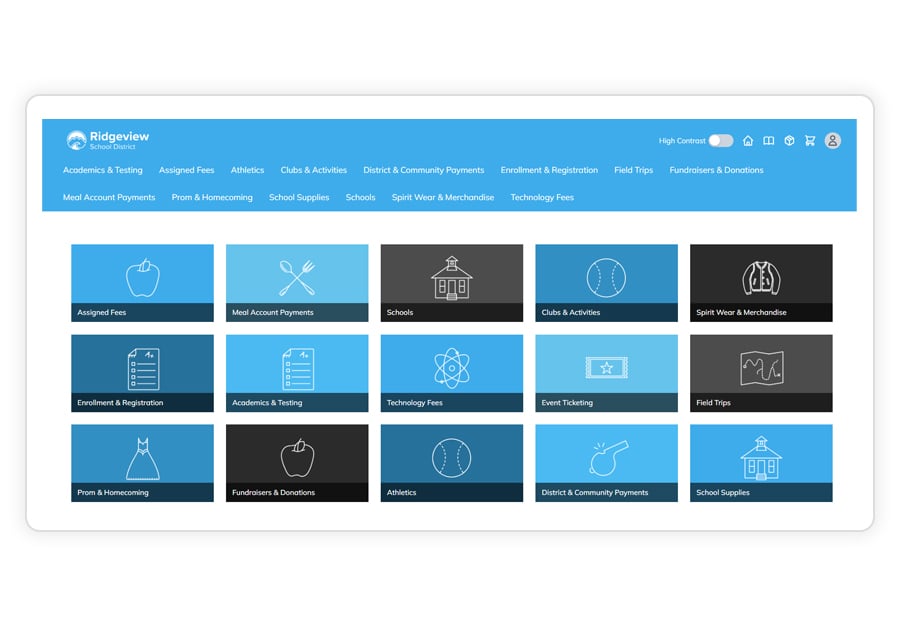 |
3. Add to CartFind the fee or item you need in the webstore, enter any needed details, and add it to your cart. You can add multiple items before checking out. |
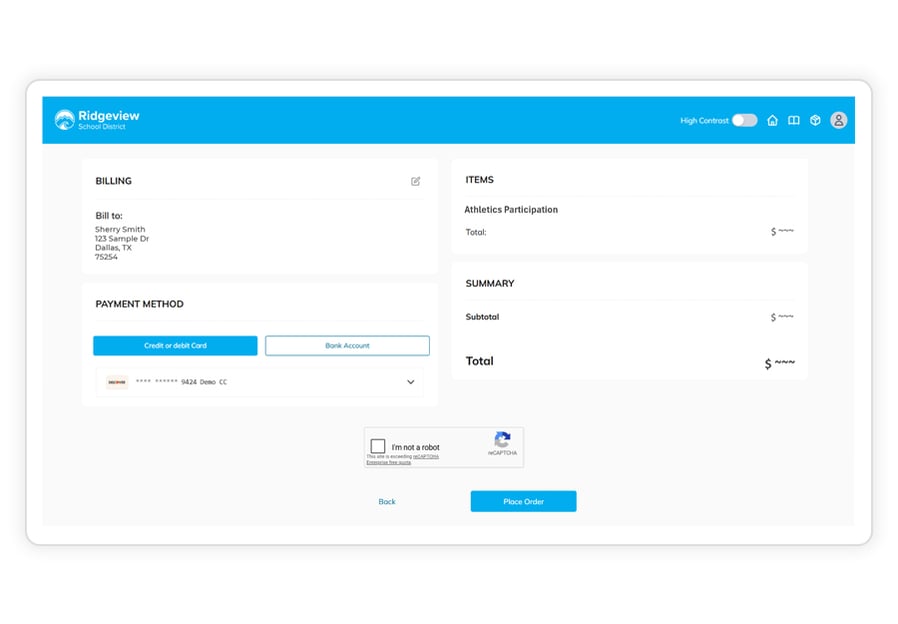 |
4. CheckoutSelect ‘Checkout’ from your cart, review your information and payment method, and then click ‘Place Order’. You can log in anytime to view receipts, check previous payments, or update saved payment information. |
|
1. Create account & sign in |
|
2. Add payment methodUnder ‘My Account’, add a Debit/Credit Card or Bank Account. |
|
3. Add to CartFind the fee or item you need in the webstore, enter any needed details, and add it to your cart. You can add multiple items before checking out. |
|
4. CheckoutSelect ‘Checkout’ from your cart, review your information and payment method, and then click ‘Place Order’. You can log in anytime to view receipts, check previous payments, or update saved payment information. |
More Resources and Guides
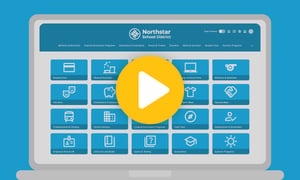
Getting started in RevTrak
• Create an account
• Add a payment method
• Pay online
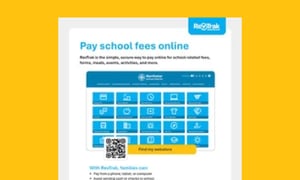

Frequently Asked Questions
It may be linked from your district website, or you may be able to find it via your search engine by searching your district name + RevTrak. You can also try our RevTrak school store finder. If you cannot locate your district store, please contact your district.
Navigate to your school or district's Webstore online. Click ‘Log In’ at the top. Under the password field, click ‘Forgot Password’ and enter the email address associated with your Webstore account. If valid, a password reset link will be sent to the provided email.
Log in to your district’s online Webstore and add all the items you want to purchase to your shopping cart. When you are ready, click ‘Checkout.’
Under 'Payment Method', select 'Credit or Debit card' or 'Bank Account'. Select your card or account, or add a new one by clicking 'Add new card' or 'Add new bank account' and entering your billing and payment information.
Verify your information is correct and when ready, click ‘Place Order.’ The payment will be processed, and the receipt can be viewed/printed. A receipt will automatically be sent to the email address provided. Receipt can be viewed at any time through your account settings.
You may enter a new payment method during checkout, or you can manage payment methods through 'My Account' from the top menu bar within your school's RevTrak Webstore. From your account under the 'Payment' section select '+ Add new payment method' or '+ Add new bank account' and complete the necessary payment details on the forms.
A refund takes 3-5 business days. If you do not see the refund after 5 business days, please get in touch with your school or district. Only your school or district is authorized to assist with refunds.
Try these troubleshooting strategies first:
- Confirm you are logging into your district's RevTrak Webstore. Often RevTrak integrates with a school’s SIS (ex: PowerSchool or Skyward). Make sure you are using the correct login portal. You should see ‘RevTrak’ somewhere in the URL.
- If you can confirm you are logging into RevTrak, try resetting your password.
- If you cannot log into your RevTrak account after resetting your password, get in touch with your school or district. Only your school or district is authorized to assist with password changes.
Auto-replenish settings can be adjusted at any time through 'My Account' or the Meal Payments section of your district's Webstore.
- Log in to the Web Store account.
- Under ‘Linked Accounts,’ click the gear icon for the account to manage.
OR
In the Meal Payments section of your Webstore, under your student's name, select 'Set up Low Balance Settings' - Next to ‘Auto-Replenish,’ toggle the slider on or off.
- Click ‘Save.’
Ask the previous school for the refund. Refunds take 3-5 business days to process. If you do not see your refund after 5 business days, get in touch with the school or district. Only the school or district is authorized to assist with refunds.
No, you cannot transfer funds from the previous school district to the new school district, even if they are using RevTrak's Web Store . You will need to ask the previous school district for a refund and then move those funds to the new district.
To request a refund, get in touch with your school administration. Only the school or district is authorized to assist with refunds.